

Elementary supports sending alerts directly to email recipients, without requiring environment-level configuration. Email destinations can be added and managed directly within alert rules.Documentation Index
Fetch the complete documentation index at: https://docs.elementary-data.com/llms.txt
Use this file to discover all available pages before exploring further.
Overview
- Email does not need to be configured as an integration on the Environment page.
- Email can be added directly as a provider when creating or editing alert rules.
- Users can enter individual emails or paste entire lists.
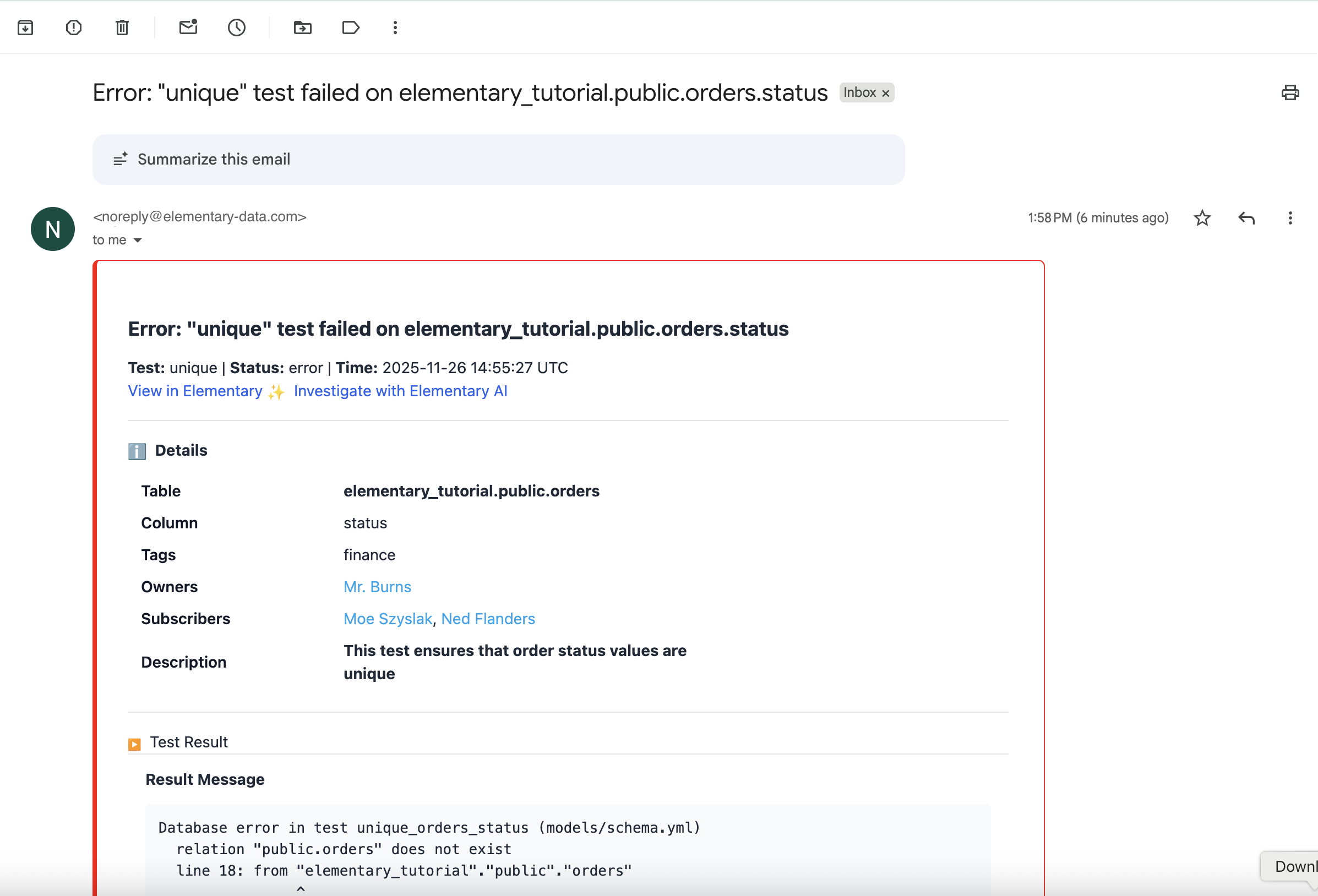
Creating an Email Alert Destination
- Go to Alert Destinations.
- Select Add new alert provider.
- Choose Email.
Adding recipients
- Users may type or paste one or more email addresses.
- The system validates email format for each entry.
- When pasting combined fields (e.g., “Name email@company.com”), only the email address is stored.
- Previously used emails may be surfaced for autocomplete (optional enhancement).
Visibility Across the UI
Alert Rules
- Email recipients appear under the destination.
- If the list is long, the UI shows the first few emails and then a “+X more” indicator.
- Hovering displays the full recipient list.
Test Overview
- Connected email destinations appear in the Destinations section for each test.
Alert Destinations Tab
- All defined email alert destinations can be viewed and managed in this tab.