

This guide contains the necessary steps to connect a Databricks environment to your Elementary account.Documentation Index
Fetch the complete documentation index at: https://docs.elementary-data.com/llms.txt
Use this file to discover all available pages before exploring further.
Create service principal
- Open your Databricks console, and then open your relevant workspace.
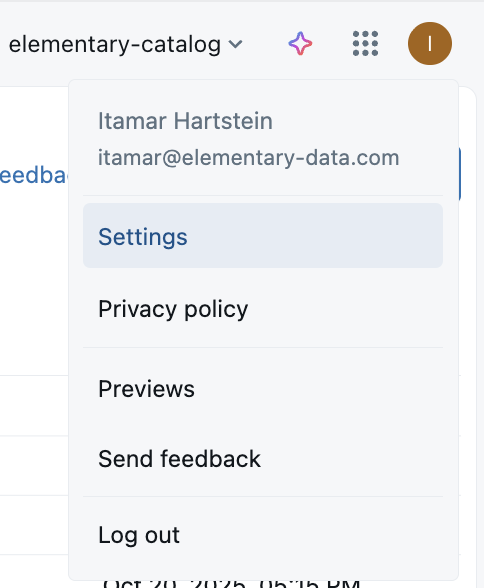
- Click on your Profile icon on the right and choose Settings.
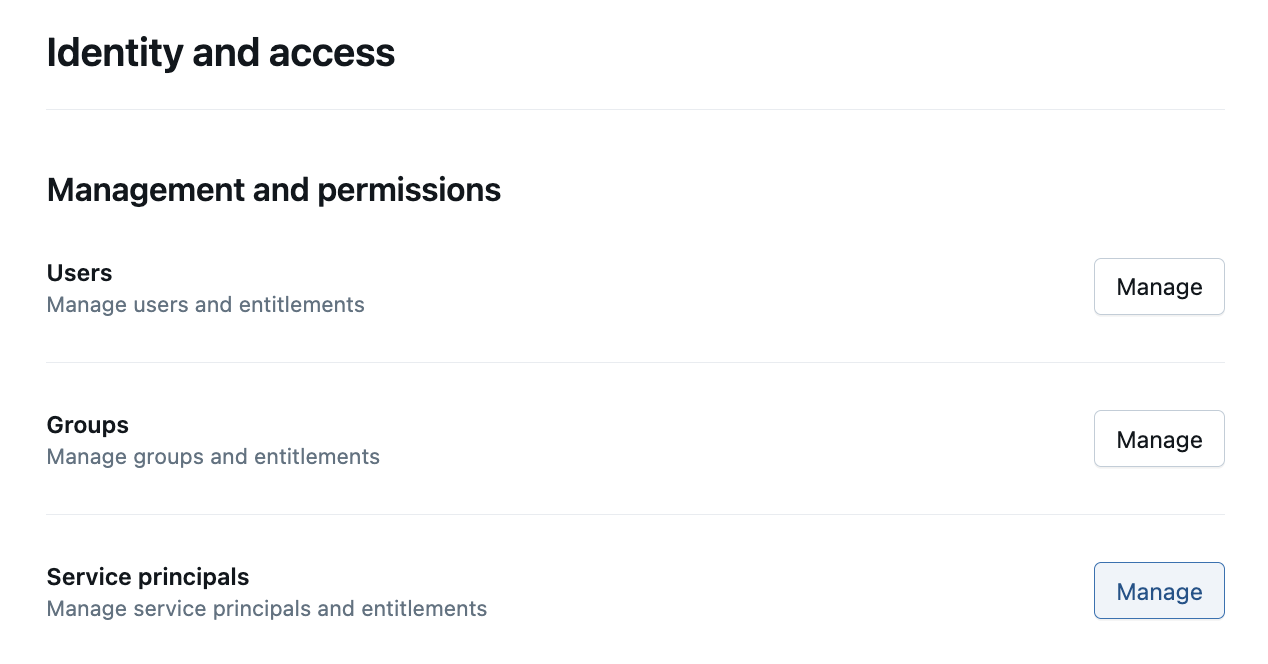
- On the sidebar, click on Identity and access, and then under the Service Principals row click on Manage.
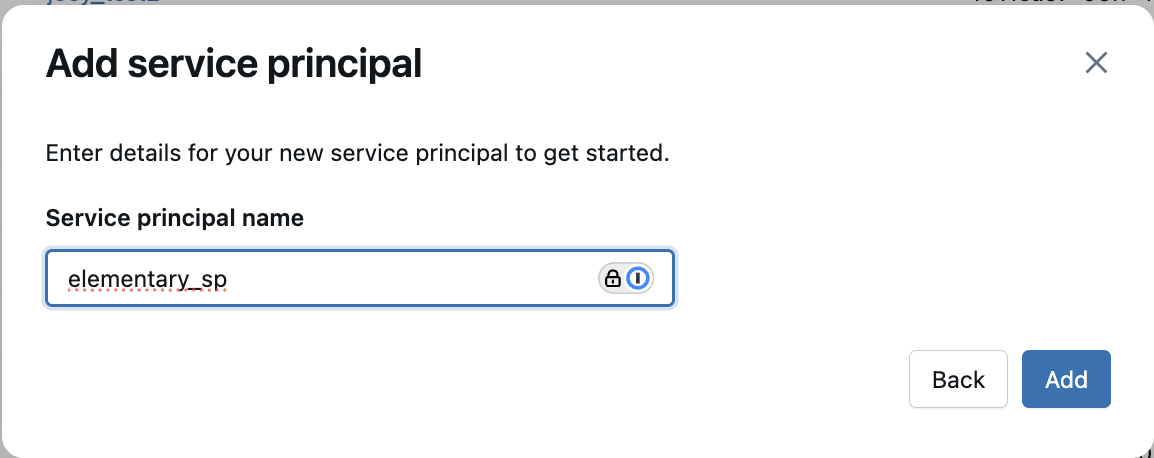
- Click on the Add service principal button, choose “Add new” and give a name to the service principal. This will be used by Elementary Cloud to access your Databricks instance.
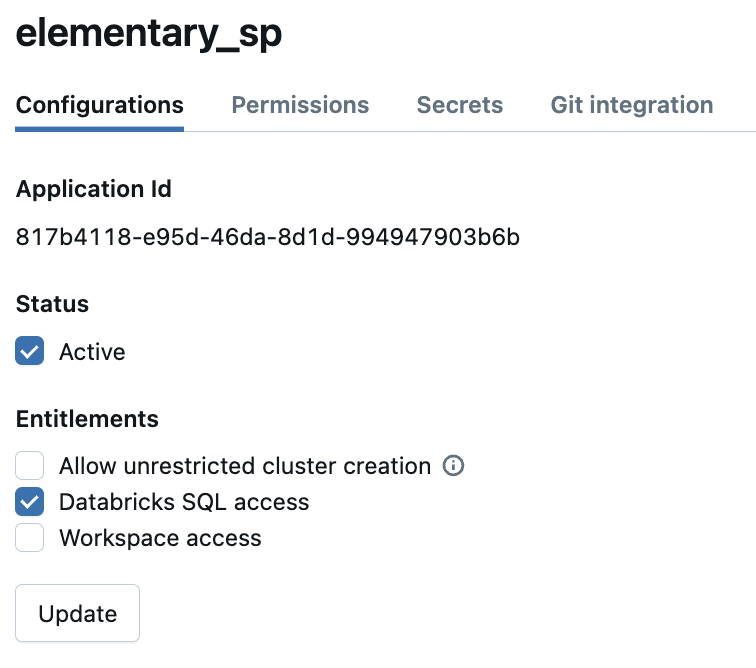
- Click on your newly created service principal, add the “Databricks SQL access” entitlement, and click Update. Also, please copy the “Application ID” field as it will be used later in the permissions section.
-
Next, generate credentials for your service principal. Choose one of the following methods:
Option A: Generate an OAuth secret (Recommended)
On the service principal page, go to the Secrets tab and click Generate secret. Copy the Client ID (this is the same as the “Application ID” from step 5) and the generated Client secret — you will need both when configuring the Elementary environment.
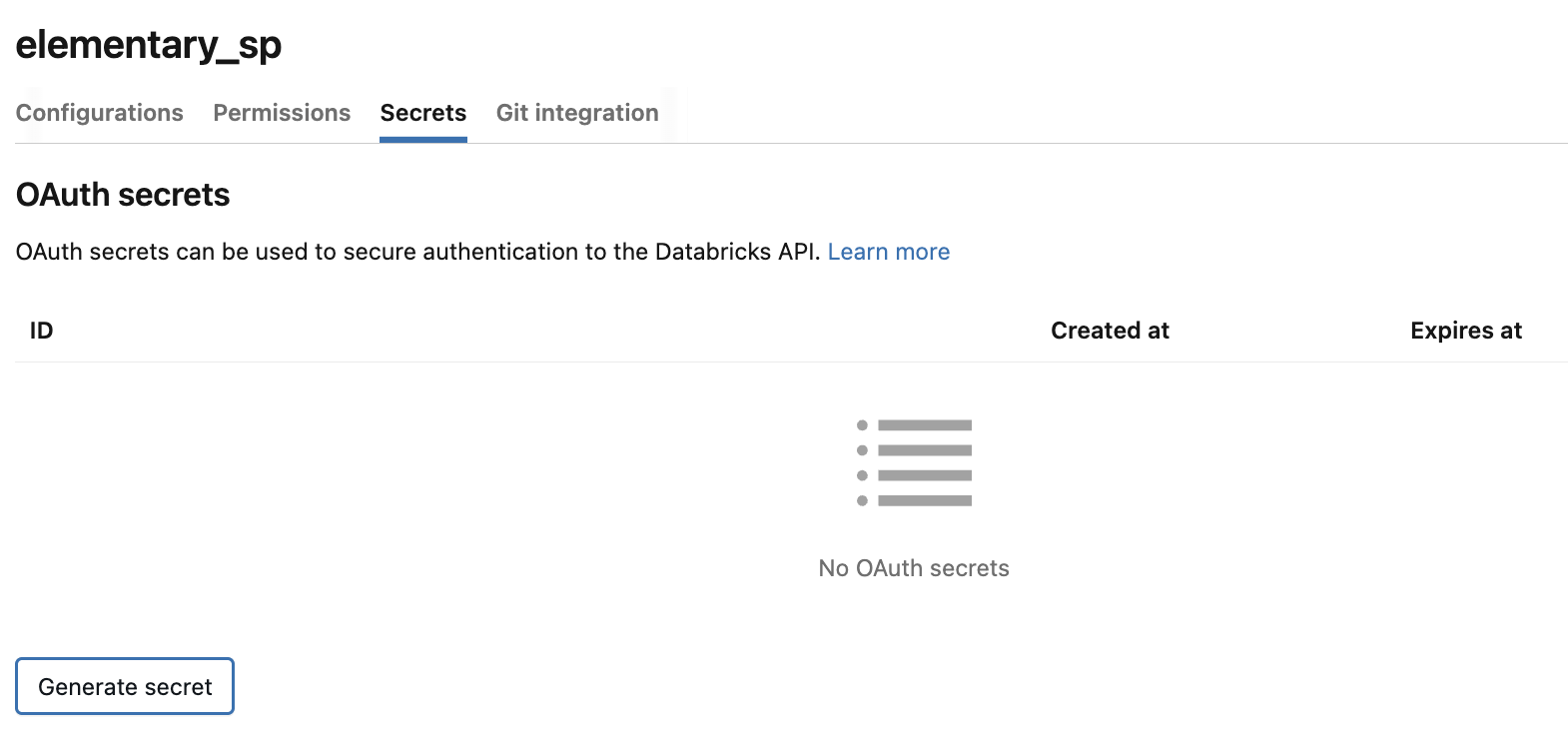
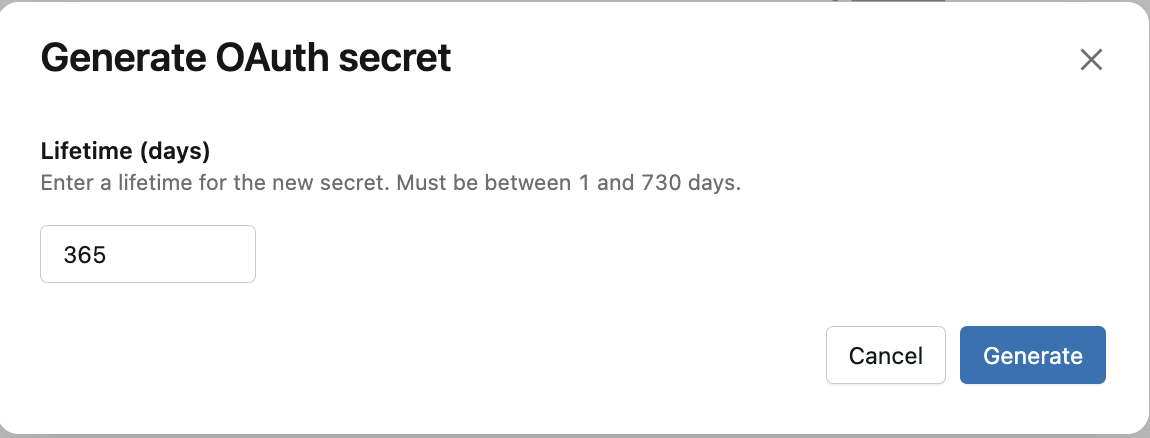 Option B: Create a personal access token (legacy) In order to generate a personal access token for your service principal, you may first need to allow Token Usage for it. To do so, go to the settings menu and choose Advanced -> Personal Access Tokens -> Permission Settings, then make sure the service principal is in the list.OAuth secrets are the recommended authentication method. They enable short-lived token generation with automatic refresh, providing better security than long-lived personal access tokens.
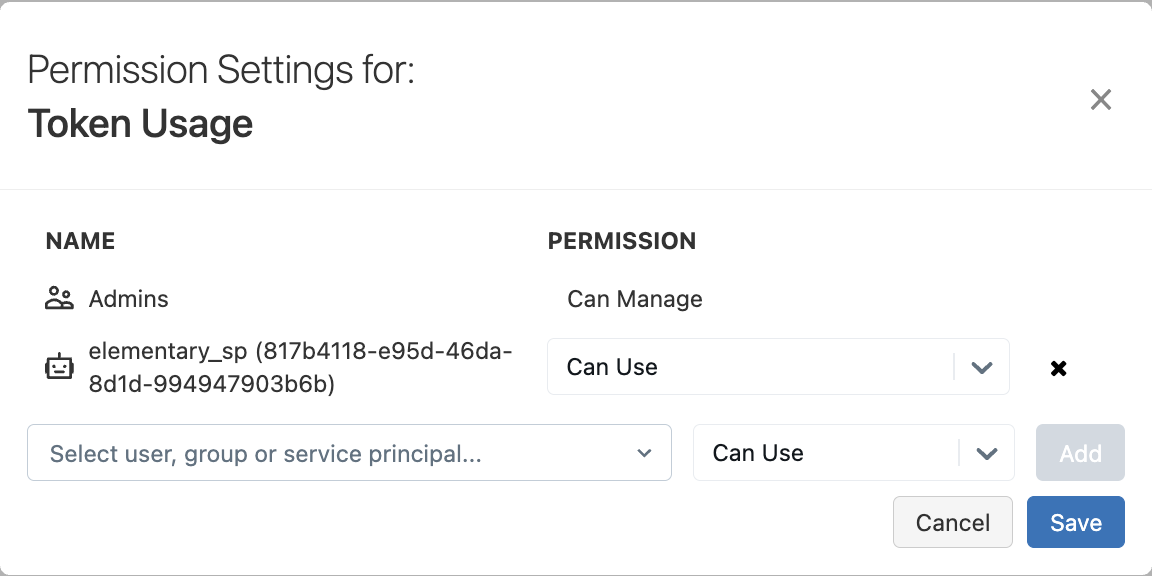 Then, create a personal access token for your service principal. For more details, please click here.
- Finally, in order to enable Elementary’s automated monitors feature, please ensure predictive optimization is enabled in your account. This is required for table statistics to be updated (Elementary relies on this to obtain up-to-date row counts)
Permissions and security
Required permissions
Elementary cloud requires the following permissions:- Elementary schema read-only access - This is required by Elementary to read dbt metadata & test results collected by the Elementary dbt package as a part of your pipeline runs. This permission does not give access to your data.
-
System metadata access - Elementary needs access to the
system.information_schema.tables,system.information_schema.columns,system.query.historyandsystem.access.table_lineagesystem tables. This access is used to get metadata about existing tables and columns, and to power features such as column-level lineage and automated volume & freshness monitors. -
Billing metadata access - Elementary needs access to the
system.billing.usageandsystem.billing.list_prices. This allows Elementary to monitor the warehouse cost and alert on it. - Storage read-only access - See details below.
Grants SQL template
Please use the following SQL statements to grant the permissions specified above (you should replace the placeholders with the correct values):Storage Access
Elementary requires access to the table history in order to enable automated monitors such as volume and freshness monitors. You can configure this in one of the following ways:Option 1: Direct storage access
Elementary can access the storage directly using credentials that you configure. In the Elementary UI, choose Direct storage access under Storage access method. When using this option, Elementary does not read the table data itself. It only reads the Delta transaction log, which contains metadata about the transactions. For S3-backed Databricks storage, you can configure access in one of the following ways: AWS Role authentication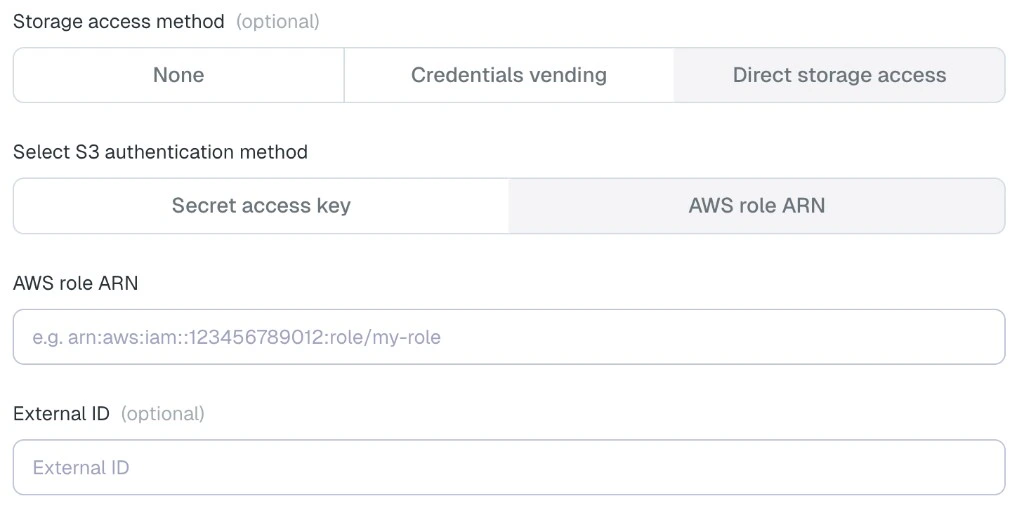
- Create an IAM role that Elementary can assume.
- Select “Another AWS account” as the trusted entity.
- Enter Elementary’s AWS account ID:
743289191656. - Optionally enable an external ID.
- Attach a policy that grants read access to the Delta log files.
*_delta_log*, so it does not grant access to other objects in the bucket.
Provide the role ARN in the Elementary UI, and the external ID as well if you configured one.
AWS access keys
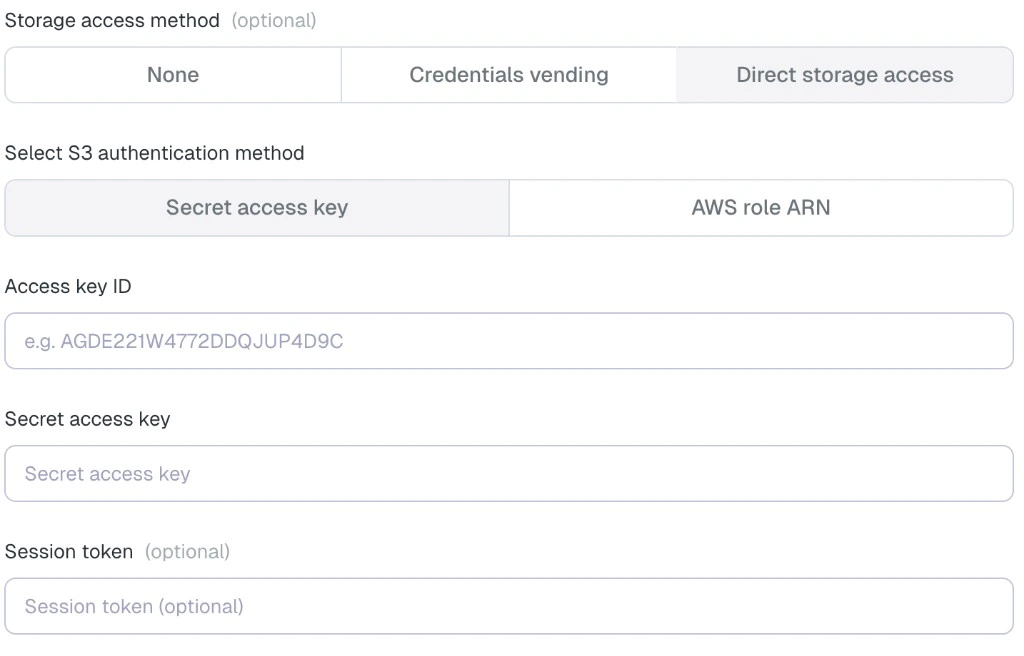
- Create an IAM user that Elementary will use for storage access.
- Enable programmatic access.
- Attach the same read-only S3 policy shown above.
- Provide the AWS access key ID and secret access key in the Elementary UI.
Option 2: Credentials vending
Elementary can access the storage using temporary credentials issued by Databricks through credential vending. In the Elementary UI, choose Credentials vending under Storage access method. This requires grantingEXTERNAL USE SCHEMA on the relevant schemas.
When using this option, Elementary does not read the table data itself. It only reads the Delta transaction log, which contains metadata about the transactions.
Option 3: Fetch history using DESCRIBE HISTORY - DEPRECATED
Elementary can fetch the table history by running DESCRIBE HISTORY queries on your Databricks warehouse.
In the Elementary UI, choose None under Storage access method.
This require granting SELECT access on your tables. This is a Databricks limitation - Elementary never reads any data from your tables, only metadata. However, there isn’t
today any table-level metadata-only permission available in Databricks, so SELECT is required.
To grant the access, use the following SQL statements:
Add an environment in Elementary (requires an admin user)
In the Elementary platform, go to Environments in the left menu, and click on the “Create Environment” button. Choose a name for your environment, and then choose Databricks as your data warehouse type. Provide the following common fields in the form:- Server Host: The hostname of your Databricks account to connect to.
- Http path: The path to the Databricks cluster or SQL warehouse.
- Catalog (optional): The name of the Databricks Catalog.
- Elementary schema: The name of your Elementary schema. Usually
[your dbt target schema]_elementary.
OAuth (M2M) — Recommended
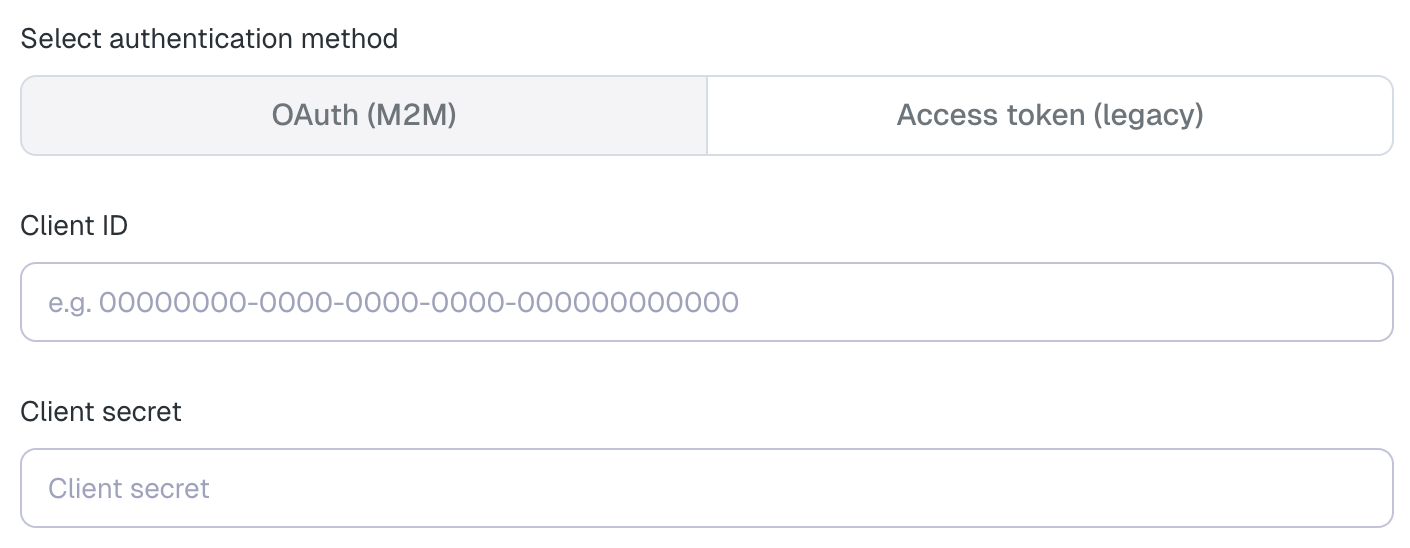
- Client ID: The Application (client) ID of the service principal (the “Application ID” you copied in step 5).
- Client secret: The OAuth secret you generated for the service principal (see step 7).
OAuth machine-to-machine (M2M) authentication is the recommended method for connecting to Databricks.
It uses short-lived tokens that are automatically refreshed, providing better security compared to
long-lived personal access tokens.
Access token (legacy)
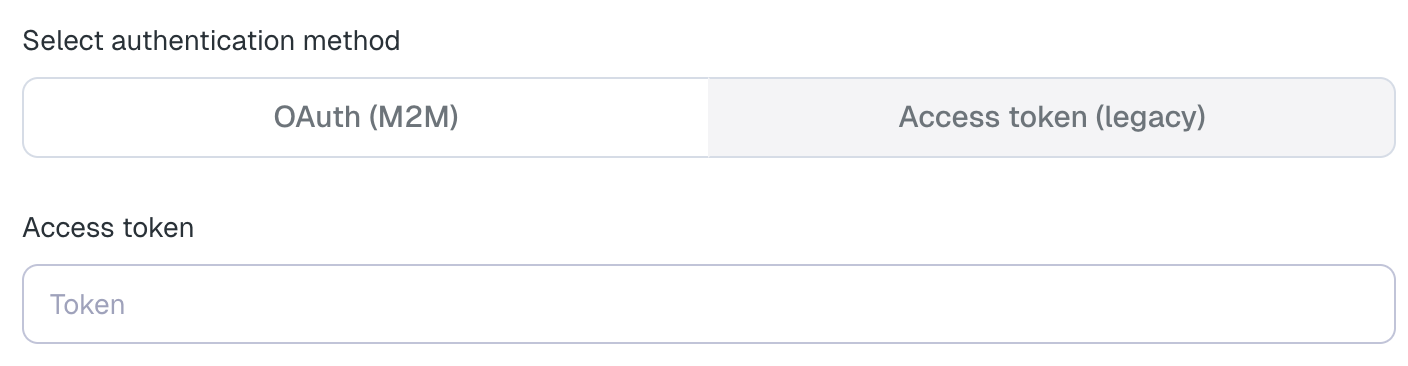
- Access token: A personal access token generated for the Elementary service principal.
Add the Elementary IP to allowlist
Elementary IP for allowlist:3.126.156.226